Shop till and scanner till
If your business is set up as a florist, garden centre, electronics or CBD shop, DevyPOS shows a till for the shop: products instead of a menu, without table plan, kitchen or call handling. Florists and garden centres work with the shop till, electronics and CBD shops with the scanner till.
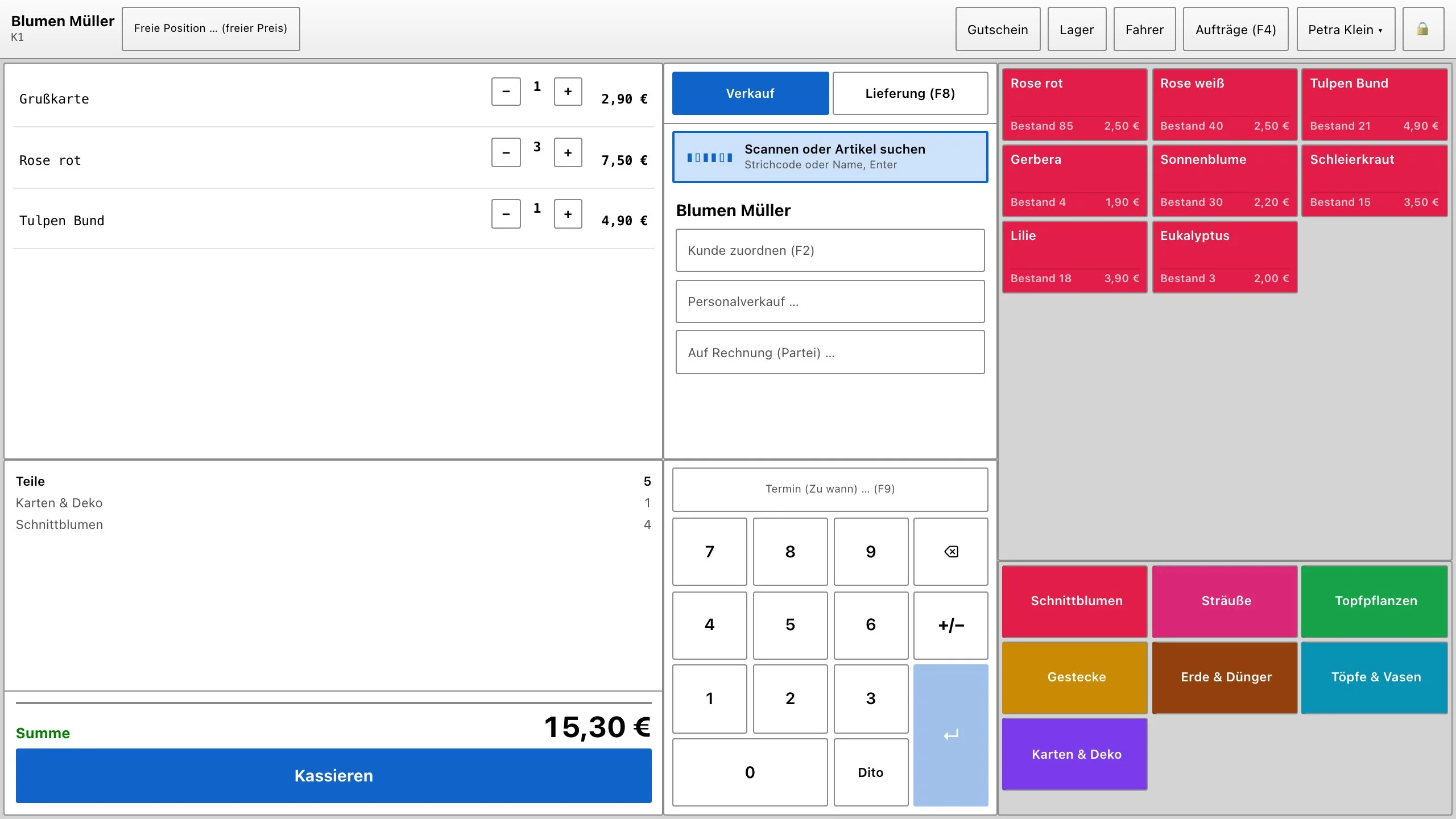
1. The shop till
- At the top right you choose the order type Sale or Delivery.
- Below it is the field Scan or search item. It takes the input of the barcode scanner and also searches by name.
- The items appear as tiles by product group. For items with stock tracking, the tile shows Stock with the current quantity.
- With Assign customer you attach a customer to the sale; for a new customer, name and phone are enough.
- A sale is completed straight away with Charge.
2. Scanning
- The barcode scanner types the digits into the scan field and sends them with Enter.
- The till first looks for the item number, then – for 8 to 14 digits – the EAN, and finally the name.
- If the item has only one size and no required choice, it goes straight onto the ticket.
Without a scanner, type letters into the field: from two characters on, the till shows matching items, which you select with the arrow keys and Enter.
3. Goods sold by weight
Items with price per 100 g (scale) or price per kg (scale) open a window when tapped. Enter the weight there – depending on the item in grams (450) or kilograms (0,450) – and confirm with Apply. The till calculates the price. No scale is connected; you type in the weight.
4. Delivery (florists and garden centres)
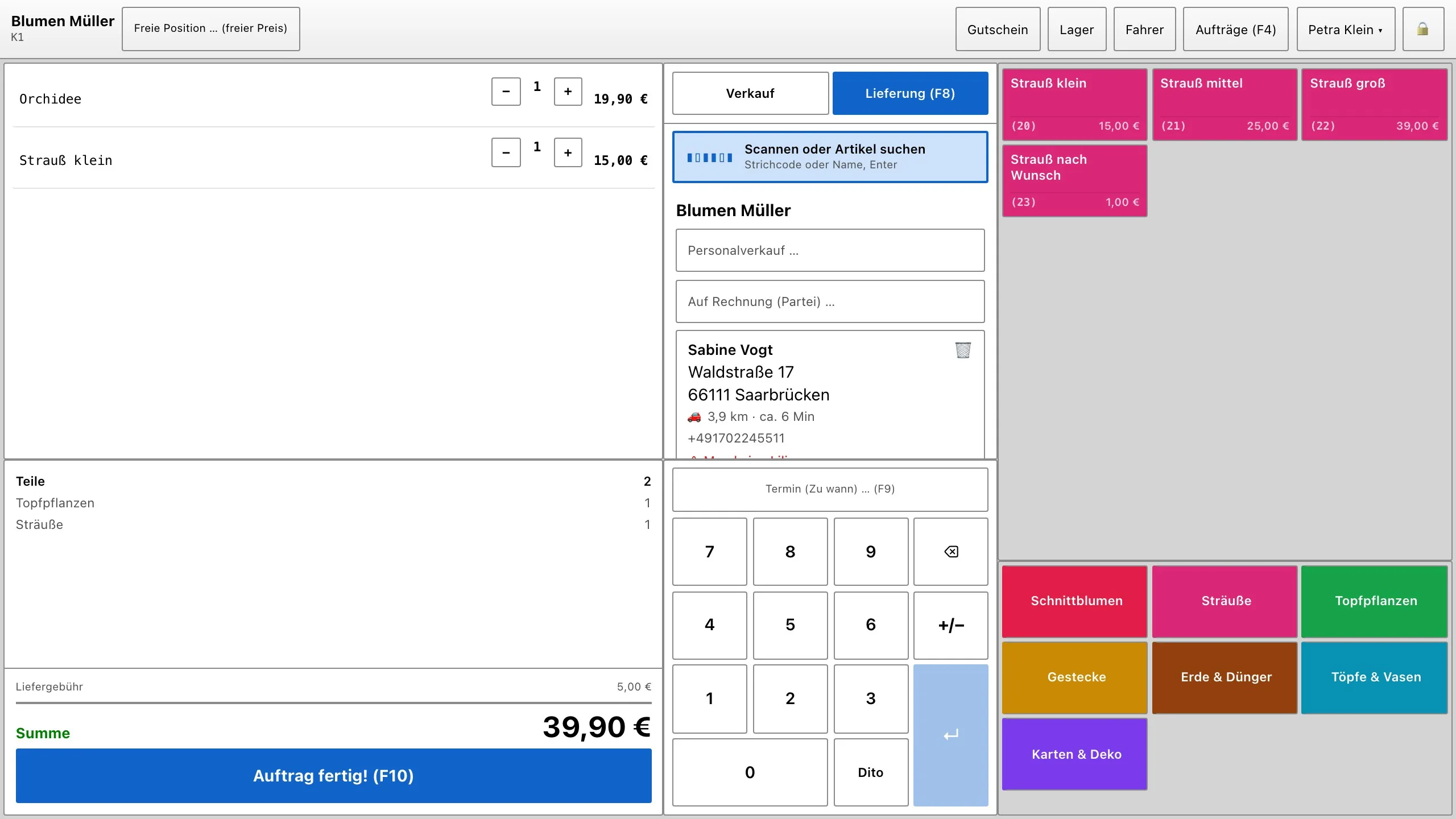
- Delivery first opens the customer search with the tabs Phone number and Customer search; you create new customers with Create customer.
- Then you enter the delivery address.
- Delivery fee and small-order fee come from your delivery zones and are shown separately above the total.
- The button now reads Order done!; payment is taken on handover. Via Drivers you assign the delivery.
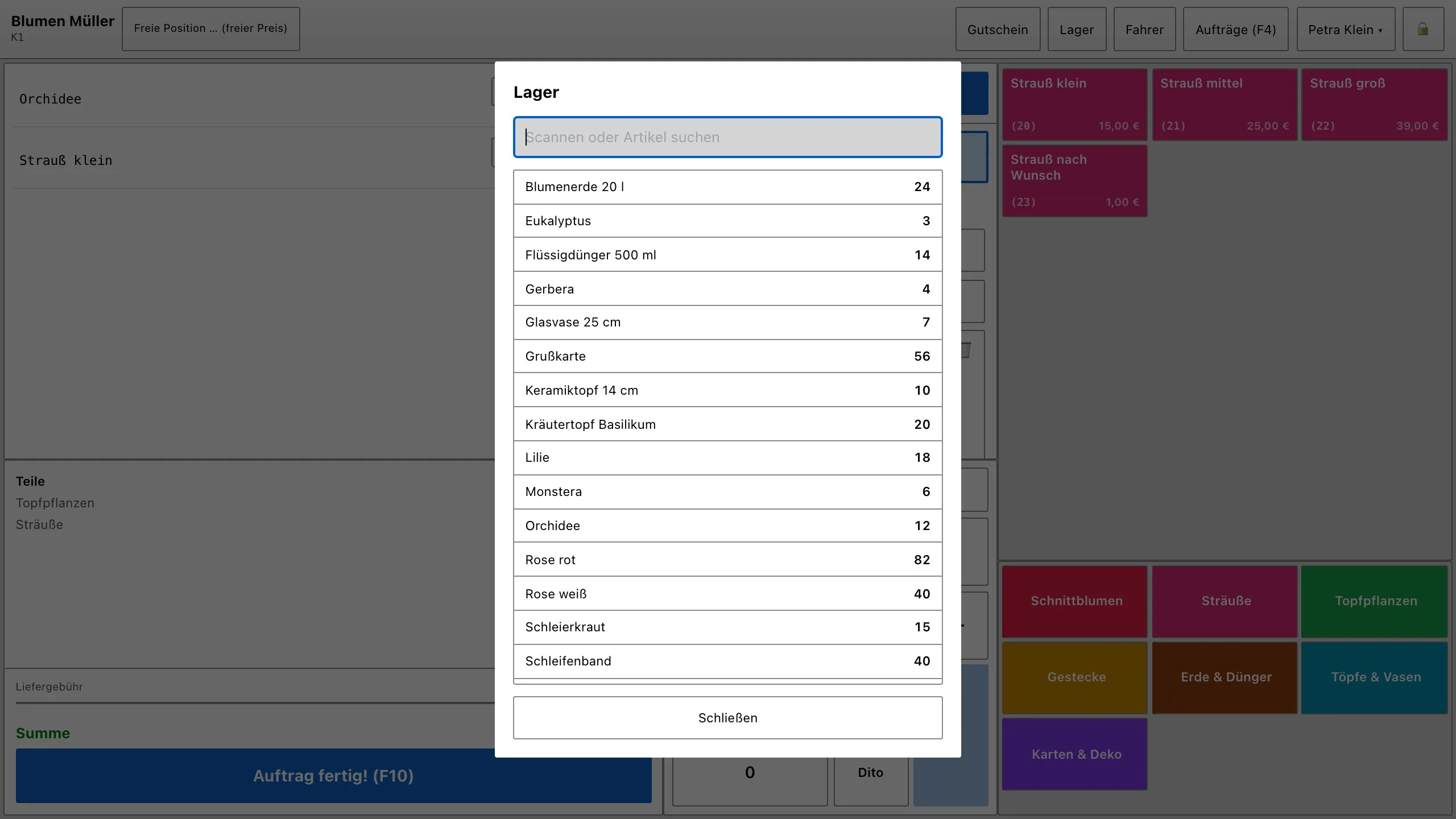
5. Stock at the till
If you track stock for at least one item, the button Stock appears at the top. It shows all items with their stock and a search field for name, EAN or item number. Items highlighted in yellow have reached their warning level. After every payment the till reloads the stock.
6. The scanner till (electronics and CBD)
The scanner till is built for fast scanning: on the left are a large scan field and the list with Item, Barcode, Qty, Unit and Total, with the grand total below. On the right are customer, product groups, item tiles and number pad.
| Button | What happens |
|---|---|
| Cash | opens Charge with cash preselected |
| Card | opens Charge with the card terminal or EC |
| More … | opens Charge without a preselection – for example for a voucher or invoice |
You always finish with Complete.