Appointments and online booking
The salon till keeps your appointments per staff member. With the Reservation system module your customers can also book online themselves – without an account, only at free times.
1. Appointments at the till
The button Appointments shows how many appointments are due today; the bar Today: lists the next ones with time, name and staff member. Appointments booked online are marked with a dot.
The day view has one column per staff member. Outside working hours the column is grey. Use the arrows to move between days; Today jumps back.
| Button | What for |
|---|---|
| Customer is here – check out | customer, services and “served by” go straight onto the ticket |
| Confirm | accept an online request |
| Reschedule | change the day, time or staff member; if the appointment has an email address, the customer receives the new appointment by email |
| Cancel | cancel the appointment; if it has an email address, the customer receives a message |
| No-show | record that the customer did not come |
2. Entering an appointment
- Tap + New appointment – or simply a free slot in the day view.
- Enter name, phone and, if you like, email; from three letters or four digits on, the till suggests customers.
- Under Services choose one or more services; the till adds up the duration.
- Under With whom? choose the staff member or any – then the till assigns someone.
- Choose the day and a free time, or if needed or enter time.
- Enter a note, for example “colour 7/1 as usual”, and save.
If the time is already taken, the till offers Book anyway. With an email address the customer receives a confirmation with the button View or cancel appointment.
3. Working hours and absences
In the back office under Appointments:
- Working hours – a weekly plan per staff member. Edit opens it: tick the days, enter the times; + with break splits the day into two parts, Same as opening hours copies your opening hours. Without a plan of their own, the opening hours apply.
- Absences (holiday, sick) – staff member, from, to and a reason; whole days are blocked.
- Upcoming appointments (14 days) – the list for the next two weeks.
4. Setting up online booking
With the Reservation system module, the section Online booking appears under Appointments:
| Setting | Default |
|---|---|
| Online booking enabled | off – when switched on, the back office shows the link to copy |
| Bookings are binding immediately | on – off means: request, you confirm at the till |
| Staff selectable | on – off means: the till assigns automatically |
| Time grid | 15 minutes |
| Earliest booking | 2 hours in advance |
| Latest booking | 8 weeks ahead |
| Free cancellation until | 24 hours before |
| Reminder by e-mail | on – the day before from 6 pm |
Put the link to the booking page – your venue’s address followed by /termin – on your website, in your Google profile or on social networks.
5. How your customer books
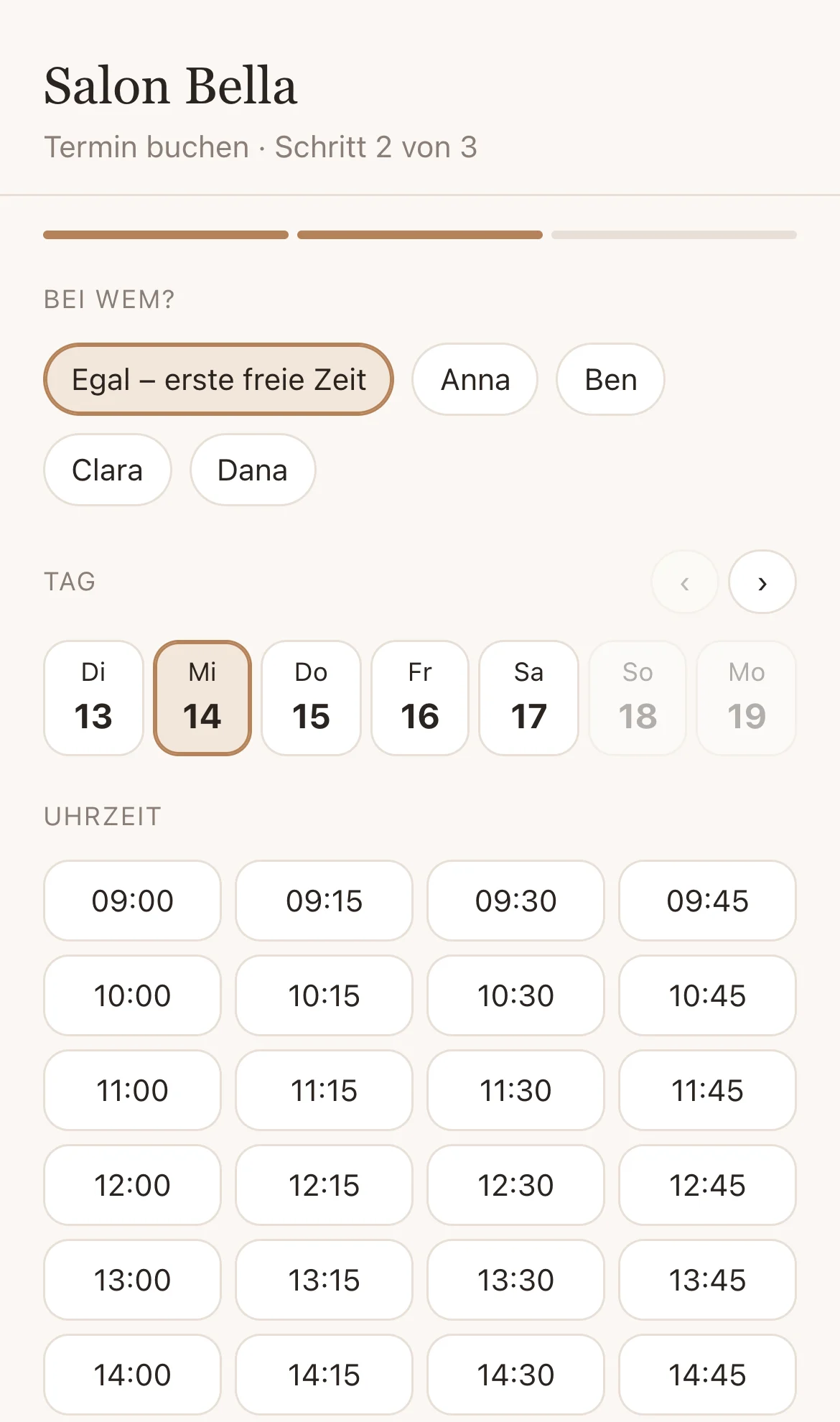
- Choose services – several can be combined.
- With whom? a staff member or Any – first free time, then day and time.
- Enter name, mobile number and email and tap Book now – or Request appointment if you confirm requests.
The customer then receives an email with a calendar entry and the button View or cancel appointment. They can cancel online up to the set deadline, after that only by phone. The confirmation of a request and the reminder the day before also contain this button.
6. Data protection
Under Privacy you set after how many months DevyPOS removes name, phone, email and note from past appointments – the default is 12 months. The customer file is not affected.