Online table reservations
With the Reservation system module your guests reserve online themselves. DevyPOS does not assign a table; it checks whether enough seats are free in the time slot – your team assigns the table.
1. Setting up in the back office
Under Reservations, Online reservations enabled activates the reservation page. You also set the time grid, earliest time, free cancellation and “binding immediately” there. For capacity the following applies:
| Setting | Meaning |
|---|---|
| Seats for reservations | how many seats are given out online; empty = all table seats |
| A table is occupied for | 1 to 3 hours, default 2 hours |
| Maximum guests online | 4 to 20, default 8 – larger groups reserve by phone |
A reservation is only accepted if all reservations in the same time slot, together with the new one, do not exceed the seats. Start times lie within your opening hours.
2. How your guest reserves
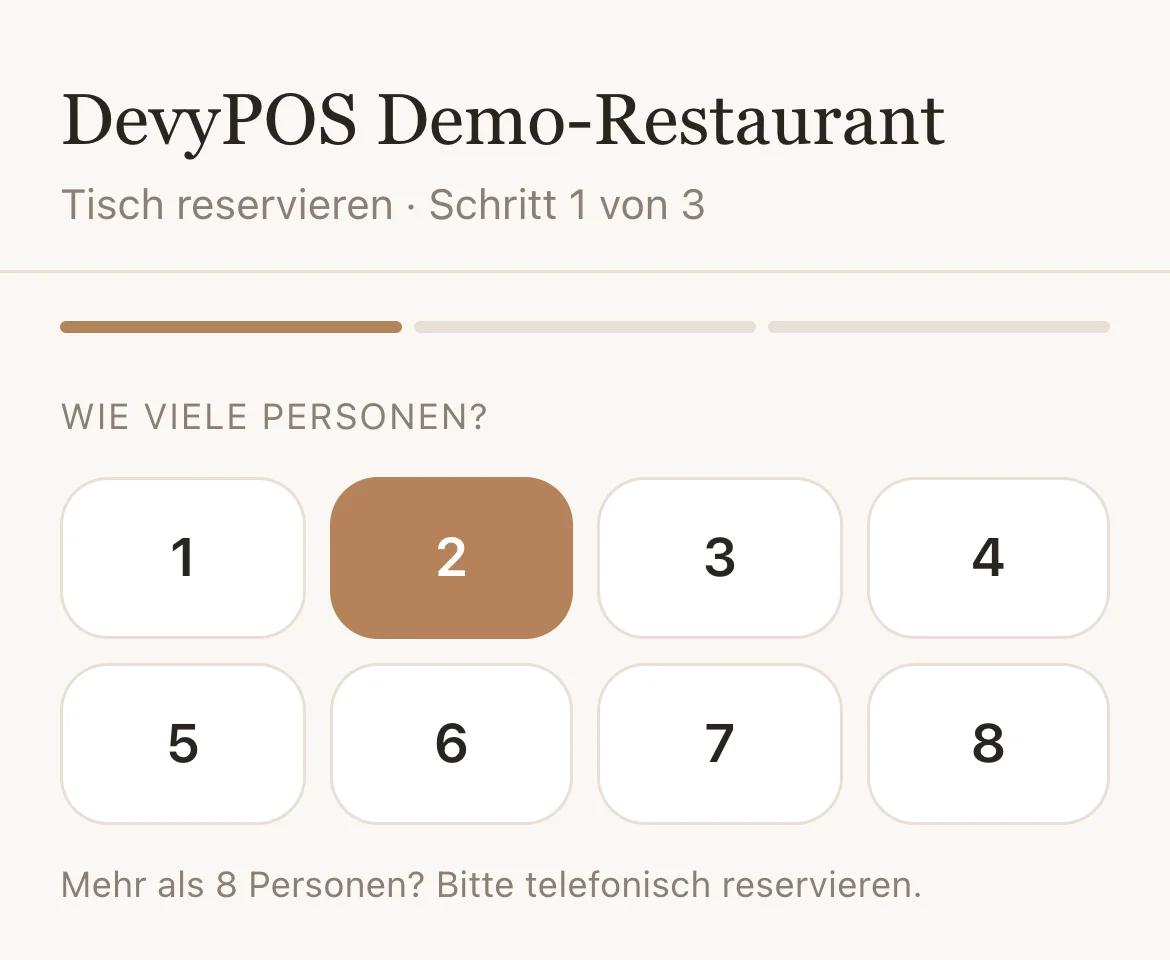
- How many guests? – up to the set maximum.
- Choose day and time.
- Enter name, phone and email and tap Reserve now – or Request reservation if you confirm requests.
The guest receives a confirmation with a calendar entry and the button View or cancel reservation. The address of the reservation page is your venue’s address followed by /reservieren.
3. Reservations at the till
The button Reservations shows the day’s list: time, guests, name, phone and status Request or confirmed; those received online are marked.
| Button | What for |
|---|---|
| Table | choose no table or room, table and seats; if the table is already reserved at that time, the till asks |
| Confirm | accept a request |
| Arrived | the guest has arrived |
| Cancel | cancel the reservation; if the guest has an email address, they receive a message |
You enter phone reservations there with + New reservation: guests, free time, table, name, phone, email and note. With an email address the guest receives a confirmation.
4. Working with the table plan
Online reservations arrive without a table. They appear in the table plan as soon as they are confirmed and have a table. Reserving directly at the table (Reserve … in the table plan, see chapter Table plan) is still possible, even without the module.